As a PMPeople user, I can customize dashboard widgets
Users can customize their dashboard by adding or removing widgets based on their needs.
Users can get an overview of all project-related information directly from the dashboard using these widgets. This helps users quickly access important data without navigating to different modules.
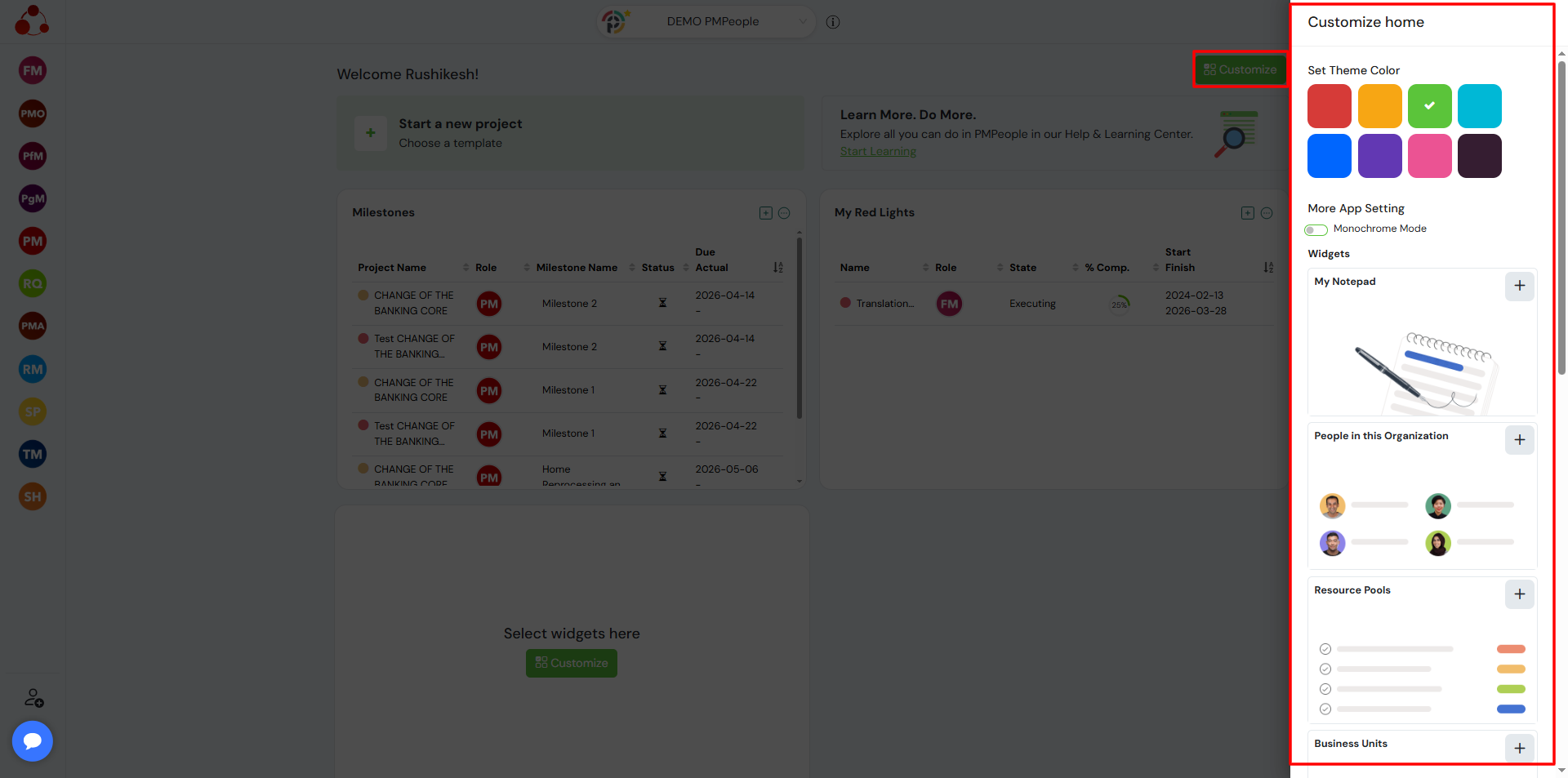
Click on the Customize button on the dashboard to select and manage widgets.
Each widget provides quick visibility into specific data across projects, people, and organization.
Widget Actions
Users have options to manage each widget directly from the dashboard.
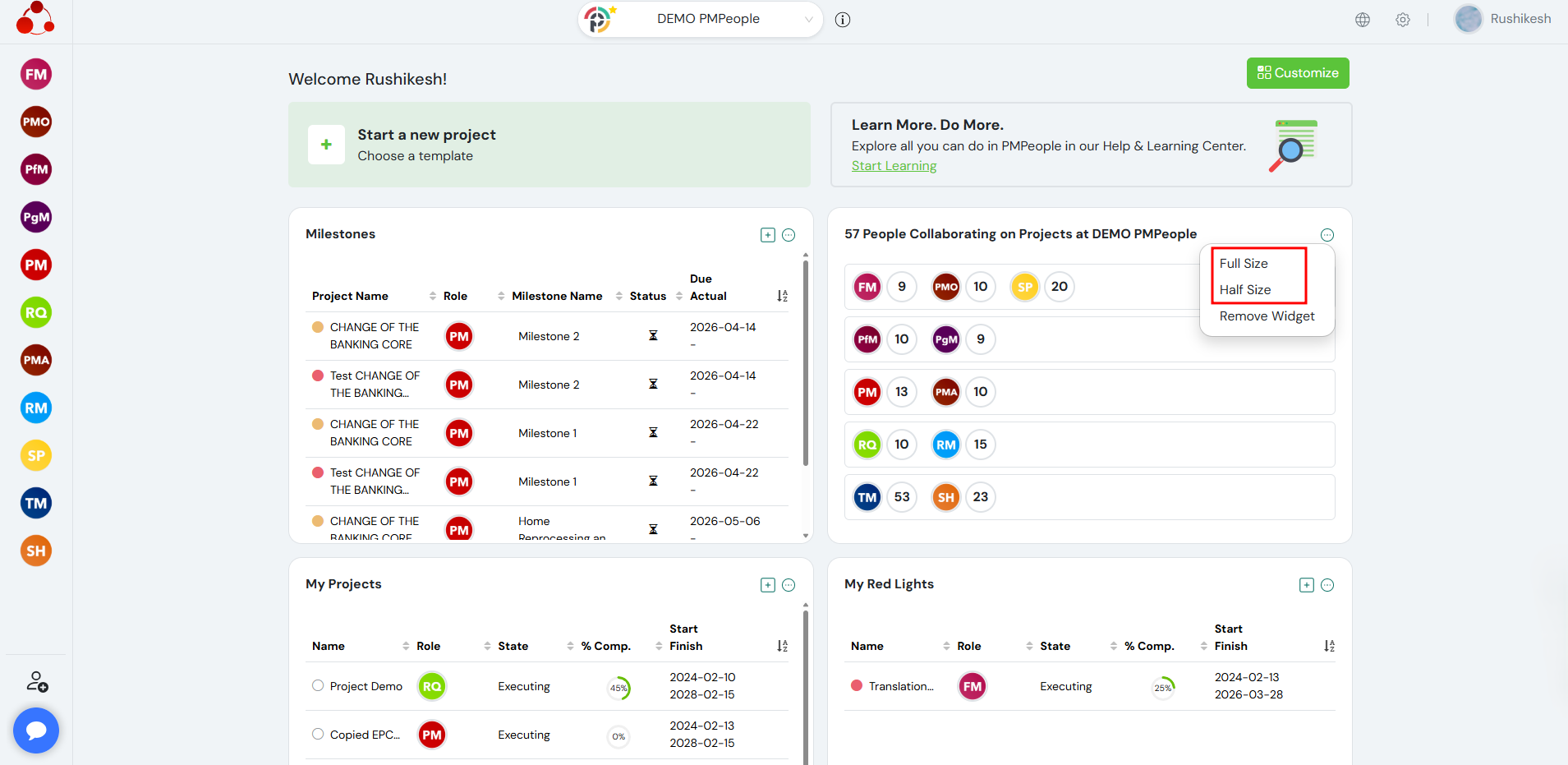
Click on the menu icon (⋯) on any widget to view available actions.
Resize Widget Users can change the size of the widget based on their preference:
- Full Size – Expands the widget to occupy full width
- Half Size – Displays the widget in a compact view
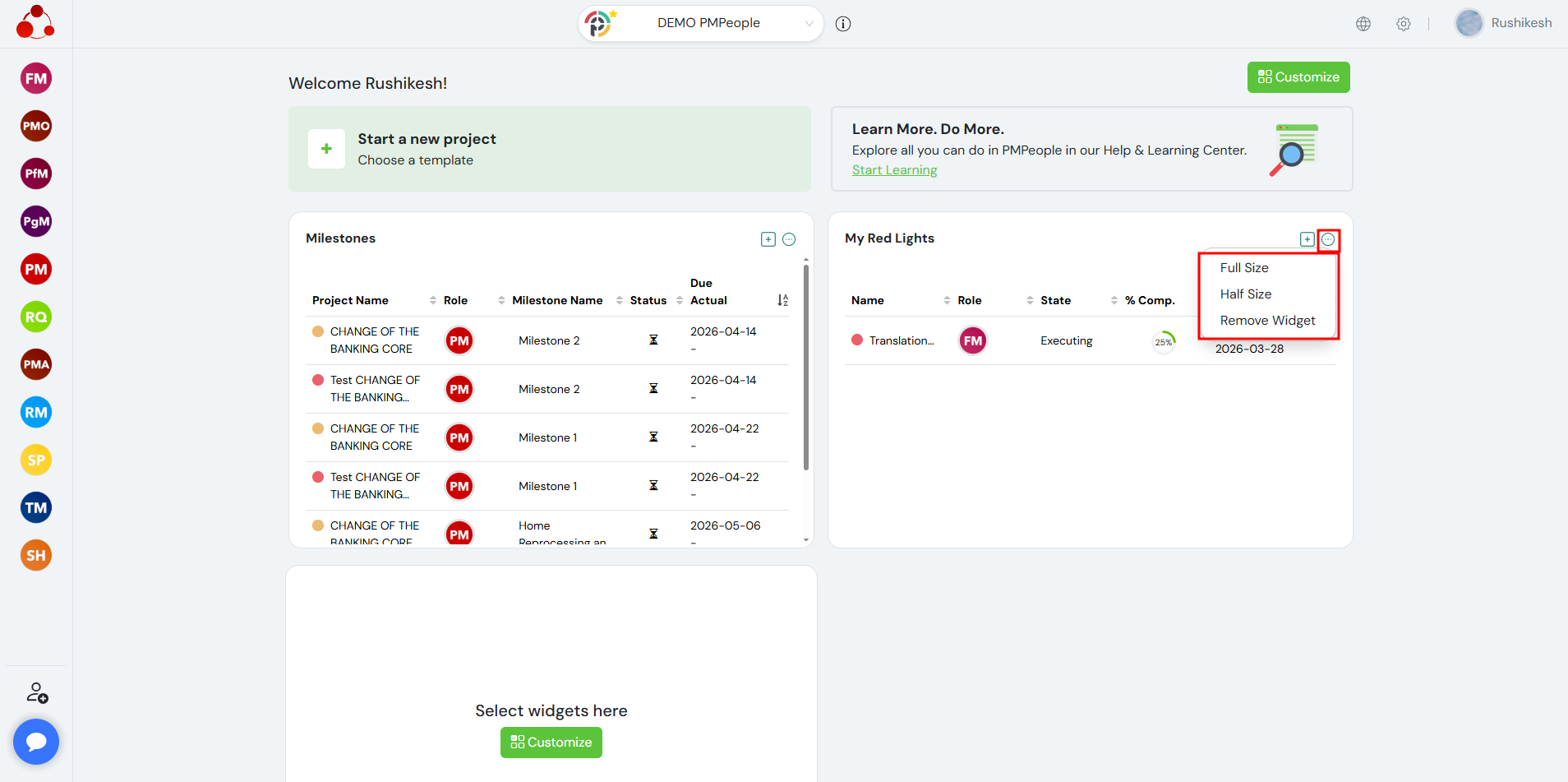
Remove Widget
Users can remove a widget from the dashboard using the Remove Widget option.
Available Widgets
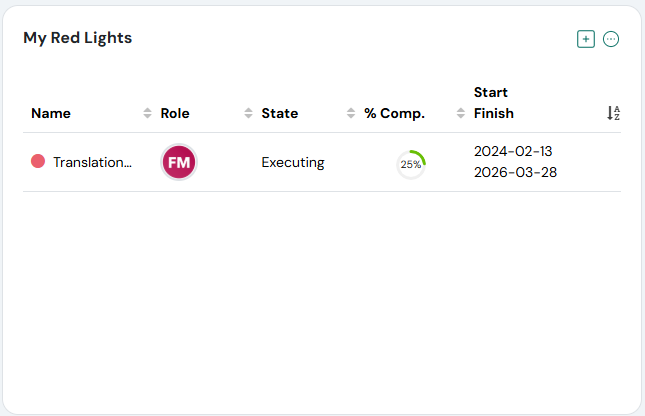
My Red Lights
Shows projects where the global status is Red and the status date is above the current date.
This widget helps users quickly identify high-risk projects that need urgent action.
By clicking on any project in the widget, users are redirected to the respective project.
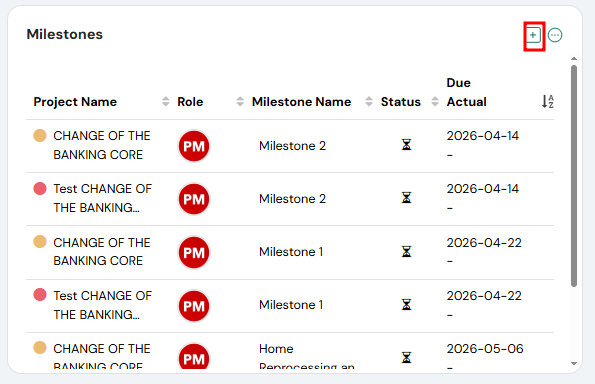
Milestones
Displays the latest milestones with due dates above the current date.
Users can add more milestones using the [ + ] icon.
By clicking on any milestone, users are redirected to the respective project.
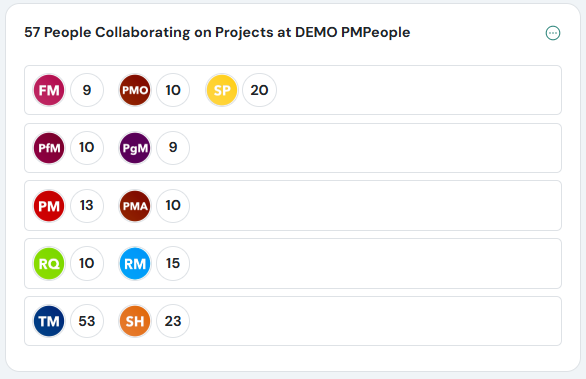
People in Organization
Shows the total number of people in the organization along with role-wise distribution.
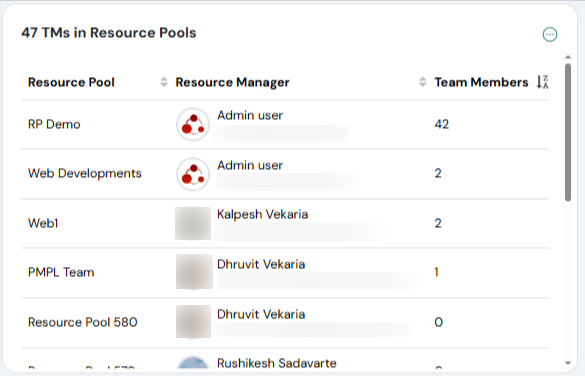
Resource Pools (Team Members)
Displays the list of team members available in a selected resource pool.
Users can view all the resource pools available in the organization. A resource pool represents a group of resources (team members) that can be allocated across projects.
For each resource pool, users can see:
- The resource pool name
- The resource manager responsible for managing the pool
- The total number of team members in the pool
This helps users understand resource availability and manage team allocation across projects more effectively.
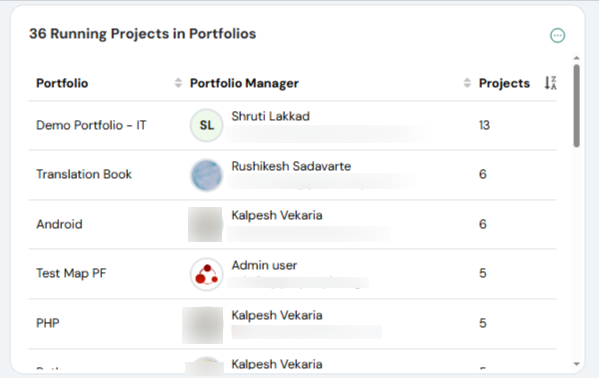
Projects in Portfolio
Displays the list of running projects under selected portfolios.
Users can view all the available portfolios in the organization. A portfolio is a collection of projects managed together to achieve business and strategic goals.
For each portfolio, users can see:
- The portfolio name
- The portfolio manager responsible for managing the portfolio
- The total number of projects within the portfolio
This helps users understand how projects are grouped and managed at a higher level across the organization.
Projects in Programs
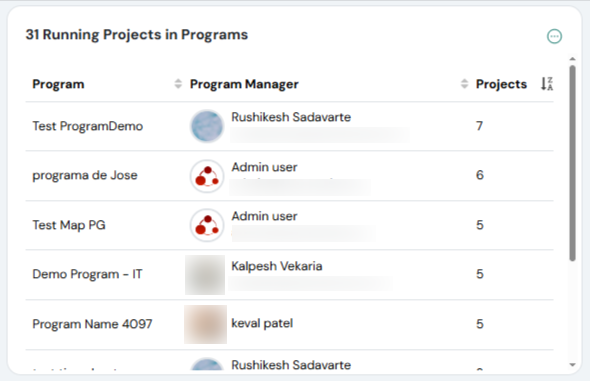
Displays the list of running projects within programs.
Users can view all the available programs in the organization. A program is a group of related projects managed together to achieve a common objective.
For each program, users can see:
- The program name
- The program manager responsible for managing the program
- The total number of projects within the program
This helps users understand how multiple related projects are aligned and managed together to achieve business goals.
My Teams
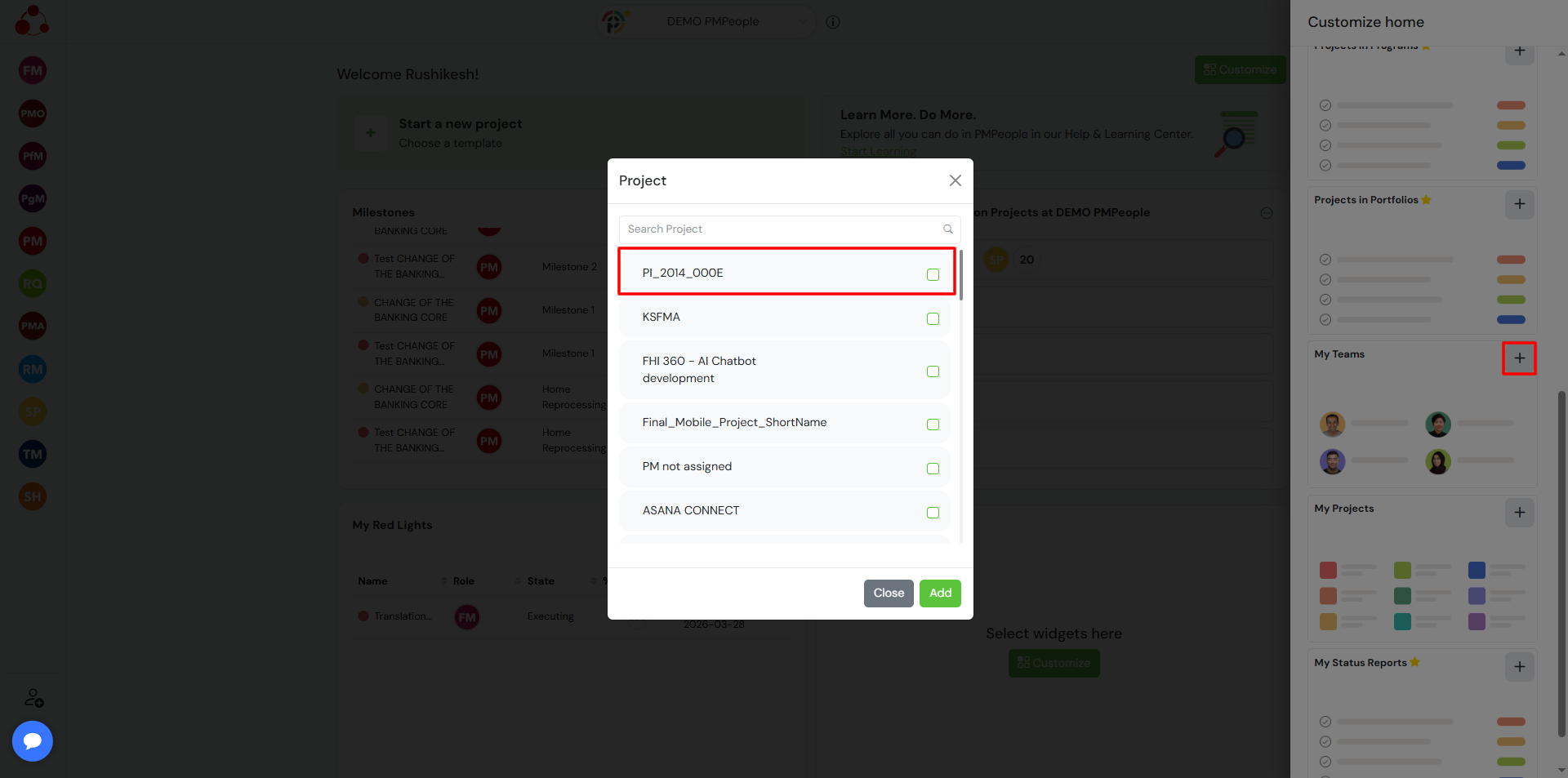
Users can add the My Teams widget using the [ + ] icon.
While adding the widget, users must select a specific project for which they want to view the team.
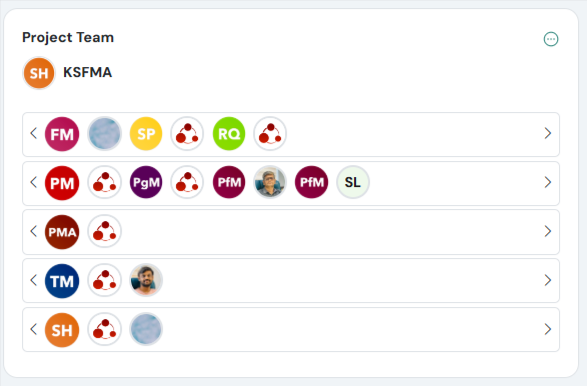
The widget displays the project team members associated with the selected project.
Users can add multiple My Teams widgets for different projects to view teams across multiple projects on the dashboard.
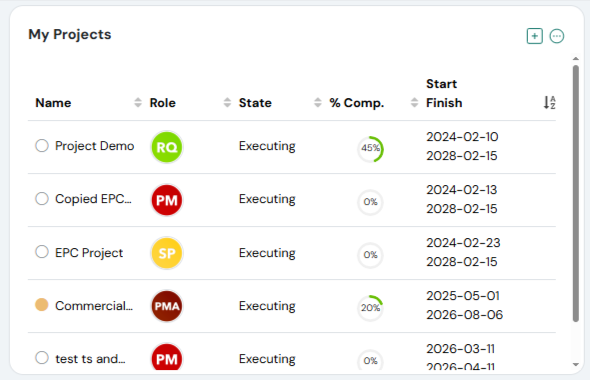
My Projects
Displays the list of projects assigned to the user.
Users can quickly view all their assigned projects in one place, helping them track and manage their work efficiently.
By clicking on any project name, users are redirected to the respective project.
My Status Reports
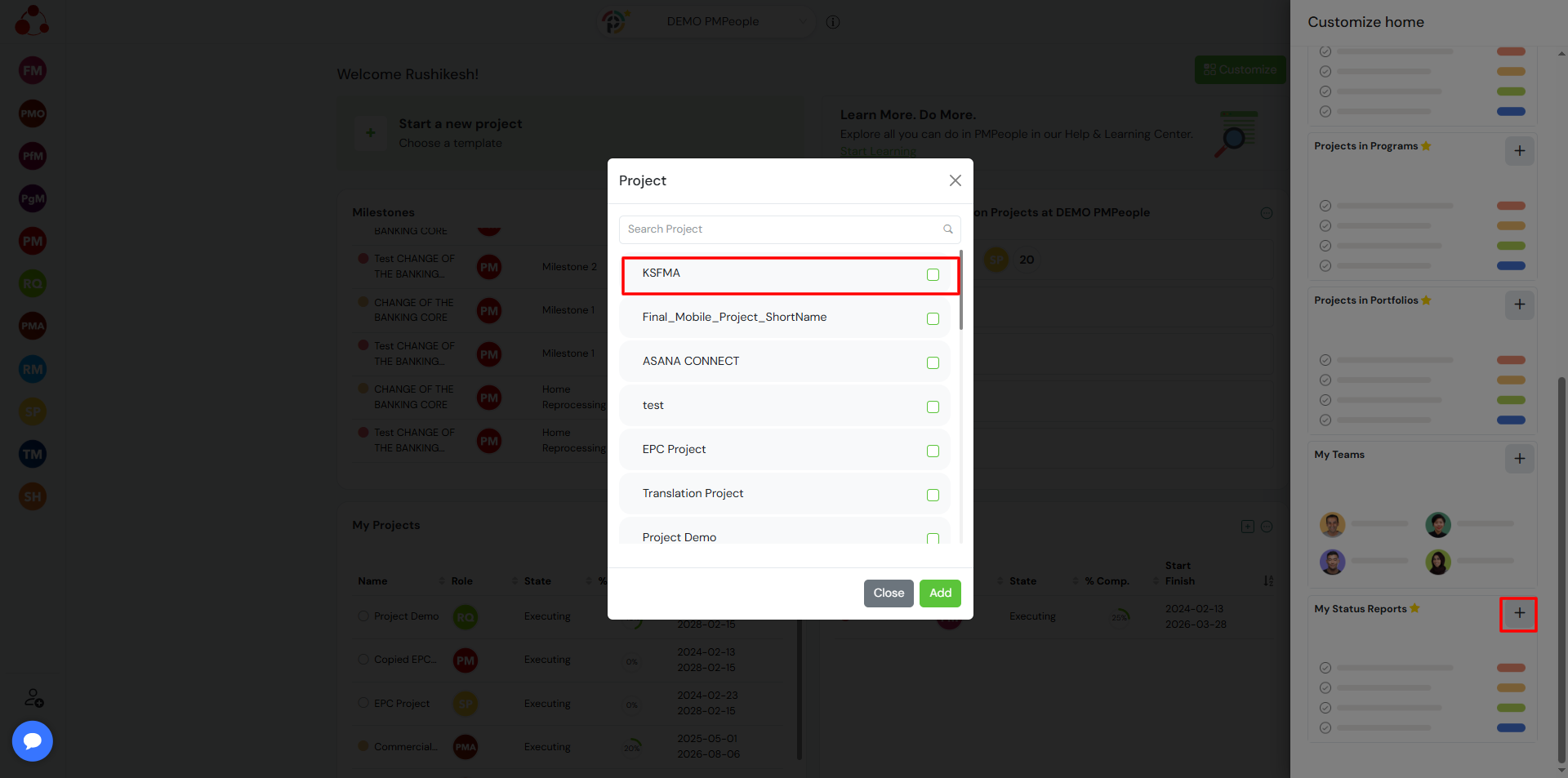
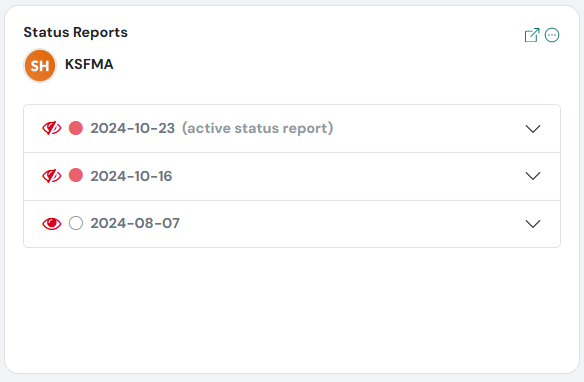
Users can add the My Status Reports widget using the [ + ] icon.
While adding the widget, users must select a specific project for which they want to view the status reports.
Users can add multiple My Status Reports widgets for different projects to track status across multiple projects on the dashboard.
Projects in Business Units
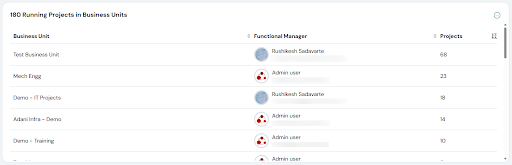
Displays the list of running projects under business units.
Users can view all the available business units in the organization.
For each business unit, users can see:
- The business unit name
- The functional manager responsible for managing the business unit
- The total number of projects within the business unit
This helps users understand how projects are distributed across different business units and who is responsible for managing them.
My Notepad
Allows users to create and manage notes for each project.
Users can add a notepad using the [ + ] icon and select a specific project for which they want to maintain notes.
The notepad acts as a central place to capture project-related information, such as ideas, discussions, observations, and important points.
Users can maintain separate notes for different projects, helping them keep information organized and easily accessible